I wasn’t impressed with Android team on their documentation for installing Android SDK. It is long, and jumps from page to page. Here is my better version:
Step 1 – Install Eclipse IDE
Go to http://www.eclipse.org/downloads/ and download Eclipse Classic (the latest version is 3.7.1).
After downloading, install and verify that it can run.
Note: If there is any error, check the System Requirements. In particular, you might need to install the JDK.
Step 2 – Install Android SDK
Go to http://developer.android.com/sdk/index.html and download the Android SDK package.
For Mac and Linux users, download the zip/tgz package and unpack it to a safe location. The SDK files will be unpacked into a directory named android-sdk-
For Windows users, download the .exe package, and run it to install. After installation is complete, the installation wizard will launch the Android SDK and AVD Manager. There is a slight inconsistent behaviour for Windows users here. Go to step (4) first, and return back to step (3) after you have finish step (4).
Step 3 – Install ADT Plugin
- Start Eclipse, select Help > Install New Software. Click Add.
- Enter “ADT Plugin” for Name and the following for Location:
**https://dl-ssl.google.com/android/eclipse/**- Click OK
- Click Next, Next, Next.. and Finish
- When the installation completes, restart Eclipse.
- In Eclipse, select Window > Preferences (Mac OS X: Eclipse > Preferences).
- Select Android from the left panel.
- For the SDK Location in the main panel, click Browse and locate your downloaded SDK directory.
- Click Apply, then OK.
Step 4 – Adding Android Platforms
The Android SDK uses a modular structure that separates the major parts of the SDK. Specifically, the different versions of Android OS are each a module. To develop for a particular version, you would need to add the platform for that version.
To do so, from within Eclipse, select Window > Android SDK and AVD Manager.
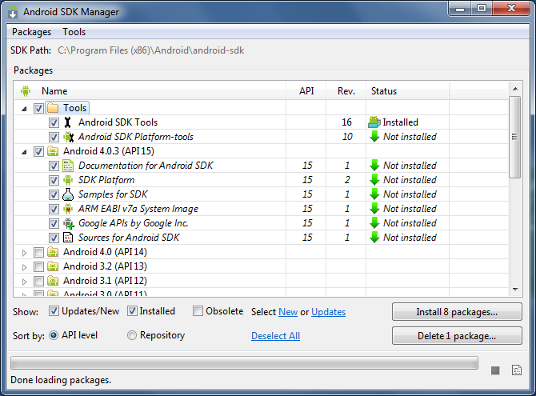
Go to Available Packages, and select at least 1 platform. You may select additional platforms if you require.
Click Install Selected to download and install. Done!
Comments